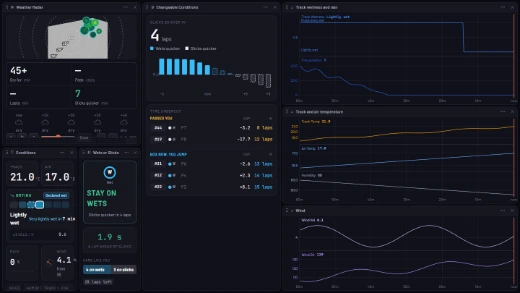
Muretto is a pit wall for sim racers: your telemetry, onboard video and timing, live on every screen while you drive and kept for analysis afterwards. Getting set up takes about five minutes, and recording is free.
The short version:
- Make a free account.
- Choose your team and who sees your data.
- Install the Telemetry Agent on your sim PC.
- Drive. Recording starts on its own.
- Open the live wall on a second screen.
- Find the time in analysis afterwards.
What you need
- A Windows PC that runs your sim. Muretto records iRacing, Le Mans Ultimate, rFactor 2, Assetto Corsa Competizione, Assetto Corsa EVO, Assetto Corsa and F1 23–25. iRacing gets everything. Le Mans Ultimate, Assetto Corsa EVO and Assetto Corsa are in beta, and rFactor 2, Assetto Corsa Competizione and F1 are earlier still.
- A browser for everything else: a second monitor, a laptop, a tablet or your phone.
1. Make a free account
Start free and sign in. You don't pay anything to record every lap, and you can pick a plan later.
2. Choose your team and who sees your data
The first time you open Muretto in a browser, it takes you through a few short screens. Two of them matter most.
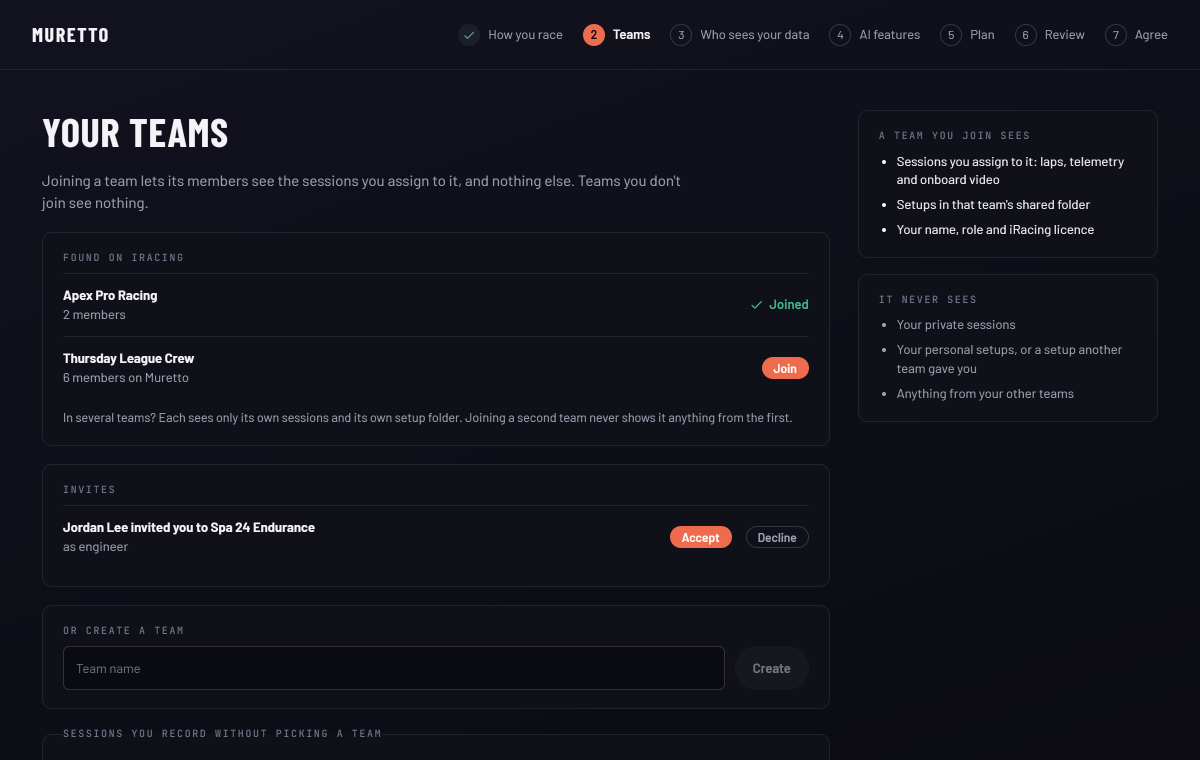
Teams. Join or create a team if you drive with one. If your iRacing account is linked, your iRacing teams show up as suggestions, but you're never added unless you choose to join. Driving on your own? Pick Just me for now and the step is done.
Who sees your data. Pick who sees each kind of data: lap times, telemetry, onboard video and car setups. Lap times, telemetry and video start with My team. Setups start with Only me. Public has hard limits, which the screen explains under each choice.
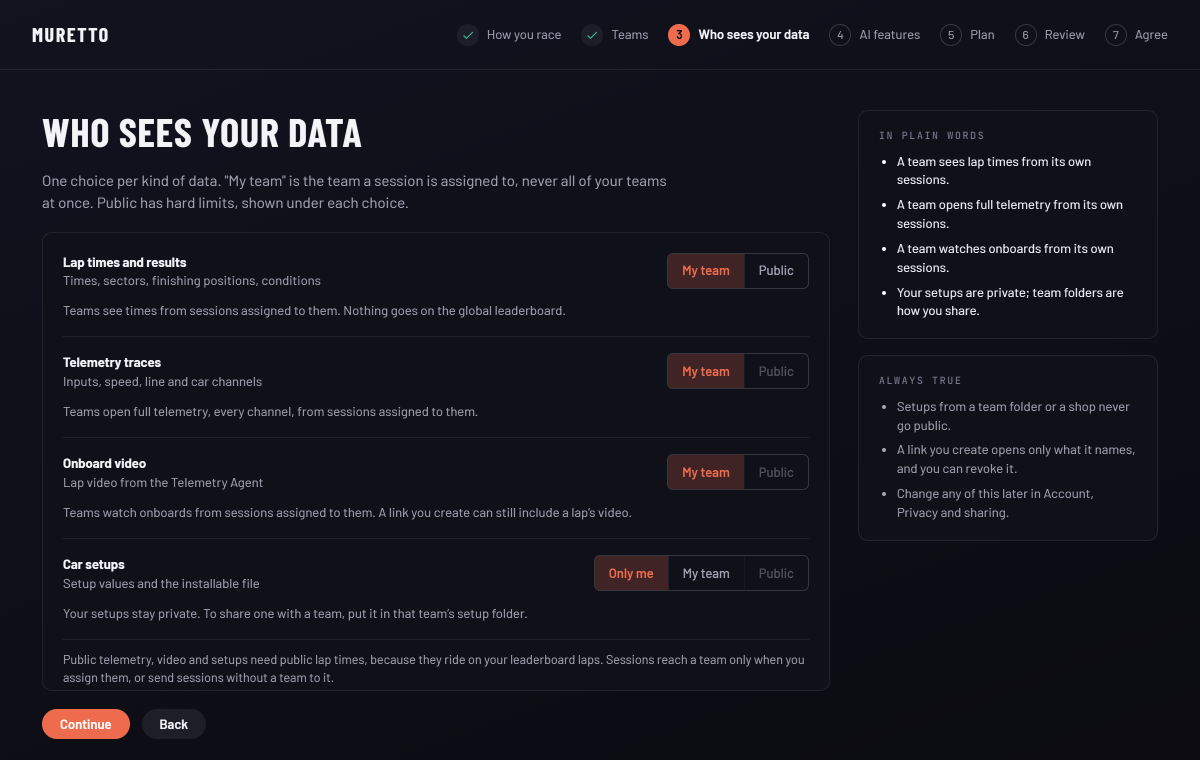
My team is the team a session belongs to. Online sessions, anything on a server other drivers can join, go to your first team on their own. Offline runs stay private until you send them to a team.
3. Install the Telemetry Agent
Download the Telemetry Agent for Windows and sign in. It's a small tray app that runs beside the sim and starts recording on its own when you go on track.
You don't need to press anything before a session. Leave it in the tray and drive. If iRacing isn't saving its telemetry, the agent says so, and Fix iRacing's settings turns it on in one click. For F1, switch on UDP telemetry in the game's settings.
4. Drive
Go out and do some laps. Everything goes live to your wall as you drive. When you stop, in the garage, in the menus or at the end of a run, the session uploads:
- its laps grouped together,
- the onboard video synced to the telemetry,
- the weather and track conditions it was driven in.
iRacing telemetry files import on their own.
Onboard video is kept for 7 days, and your fastest lap in each condition keeps its video for good.
5. Open the live wall on a second screen
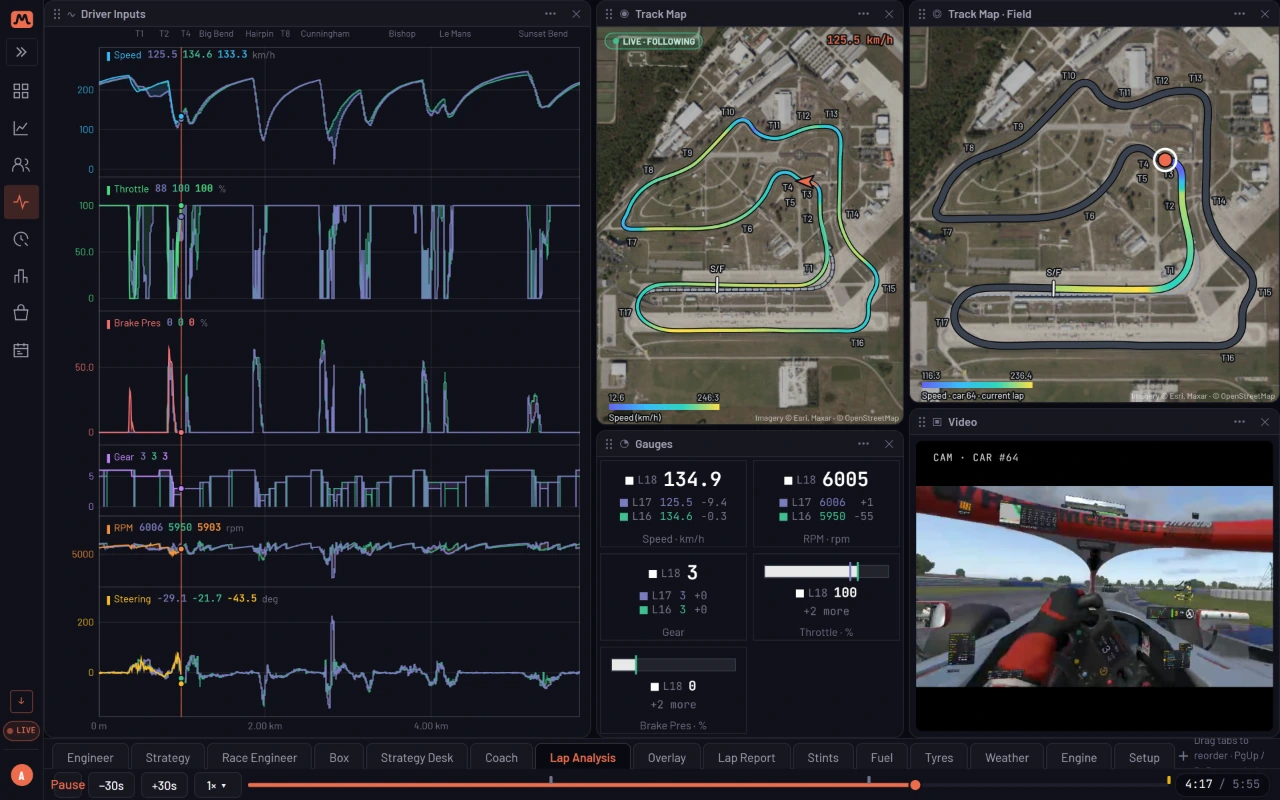
Open Muretto on a second monitor or a tablet beside the rig. The live wall shows your delta, gauges, track map and onboard camera, measured against the lap you choose, on tabs you can lay out your way.
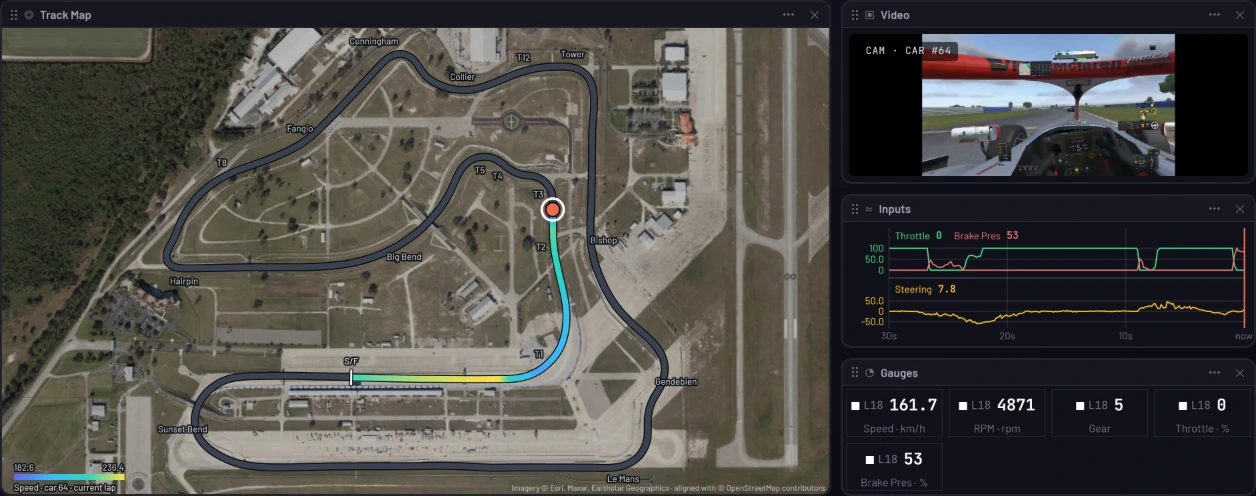
Your team sees the session live from wherever they are, and so does anyone you send a Share live link.
6. Find the time afterwards
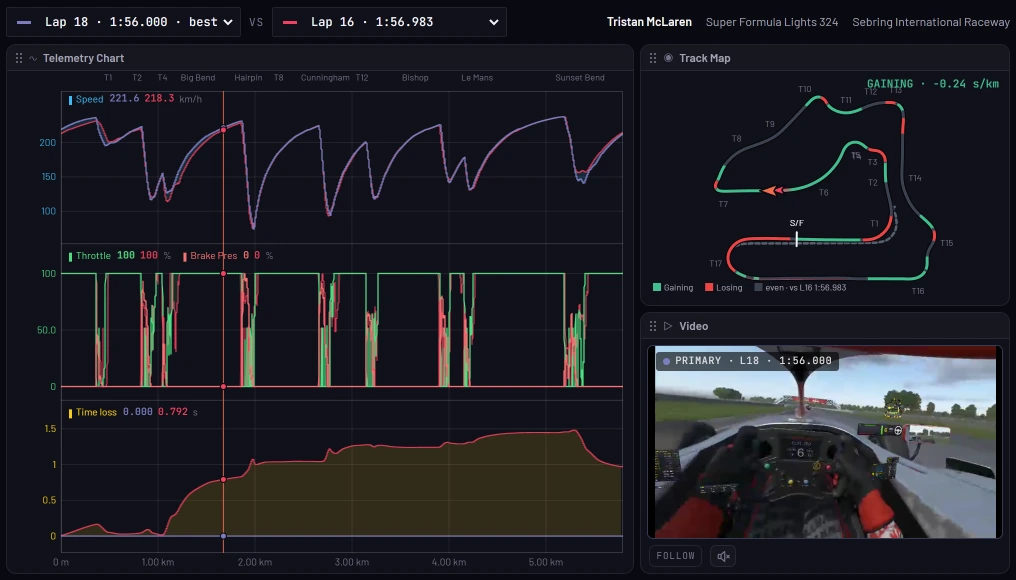
Open a session afterwards and its laps are ready on tabs: Long run, Lap vs lap, Corners, Strategy, Setup, Fuel Burn, Tyre Wear and Laps. Pick two laps to overlay. They share one cursor, with the time delta, sectors and corner names on every trace. Scrub the traces and the onboard video follows.
These are two laps of a Super Formula Lights race at Sebring, in the same panels. Pick any two of its laps to compare.
Bring your crew
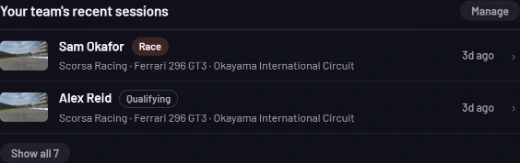
Invite drivers, engineers and spotters from Teams, by their Scorsa username, their name or their iRacing name. They join when they accept. A team sees the sessions its members send to it, and their online sessions. Those show up on your Home page as they're recorded, and while a team-mate is on track, a bar at the top says so.
That's it. If anything doesn't work the way this says, email us at enquiries@scorsa.io and we'll sort it out.